Enabling Custom integrations
Your Custom integration has two copies: the draft copy that you build and test in the Custom Integration Builder, and the production copy that runs when your Custom integration is enabled.
At any point as you test your Custom integration, you can save a draft copy by clicking the Save draft button. Clicking this button will not affect your production copy.
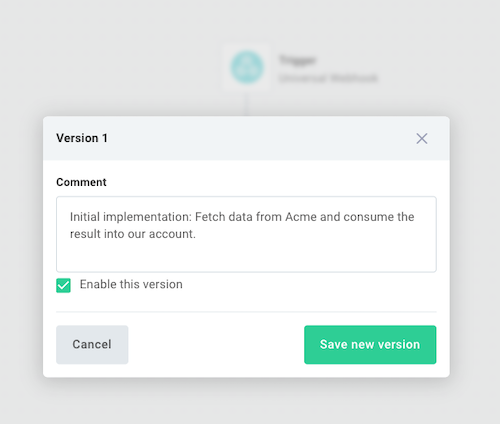
Once you are satisfied with testing and your Custom integration works as expected, you can enable the production copy by first clicking the arrow to the right of Save draft and then selecting Save as new version. Give your version a comment (describing what you changed), and optionally select Enable this version.
Alternatively, you can enable your Custom integration by clicking the Enable button at the top left of the canvas.
Enabling your Custom integration has the following effects:
- It makes a production-ready copy of your Custom integration. Any changes you make to the Custom integration after enabling it will not affect the production copy unless you explicitly save a new version and enable it.
- If your workflow uses a schedule trigger, it will start running on the schedule you defined.
- If your workflow uses a webhook trigger, it will start listening for incoming webhook requests using its production URL.